Getting started Moin.Schule
Table of Contents
Here we describe how to configure moin.schule for development and test purposes.
General note
The following applies for testing and production.
- moin.schule is managed completely by N-21 and we have no control over it.
- If there is any additional feature required or moin.schule is not available, then it needs to be communicated to N-21 directly.
Moin.Schule (Development+Reference-instance)
The development and reference environments of SVS in nbc space use the testing instance of moin.schule.
This instance is available via internet. Thus every SVS branch can be configured to work with moin.schule.
For the work with a moin.schule-instance a web application is available. For the testing instance of moin.schule the application is available here: Moin-Schule-Staging-Web-App.
Managing moin.schule applications requires a moin.schule-sysadmin account.
ℹ️ moin.schule sysadmin account
moin.schule-sysadmin account credentials was made available for dataport. Contact DP-DevOps for this topic.
Login to SVS via moin.schule is based on OAuth2 procedure therefore an OAuth2 configuration is required.
ℹ️ SVS and moin.schule
- In SVS moin.schule is managed as an external OAuth2 system.
- In moin.schule an SVS server is managed as an external application identified by an unique clientId
The following parameters are required to establish communication between SVS and moin.schule:
- clientId
- clientSecret
- redirectUrls
clientId and clientSecret are generated in moin.schule and must be known in SVS.
redirectUrls refer to SVS branches (servers) which wants to communicate with moin.schule and must be made known in moin.schule.
dBildungscloud-Dev and dBildungscloud-Ref are used to manage the redirect URLs. Each application manages a list of redirect-URLs that need to be configured.
redirect-URLs accepts wildcards. SVS's main-Branch should be configured by default.
When testing specific branches, the redirect URL of the branch must be added to appropriate application (e.g. to 'dBildungscloud-Dev').
Do not forget to remove the URL when the branch is not needed anymore!
ℹ️ Enter redirect URLs in moin.schule service
In order to be able to work with moin.schule from an SVS branch, an appropriate redirect-URL must be configured in moin.schule service.
Example how to define a redirect-URL for a branch:
https://n21-<branch-name>.nbc.dbildungscloud.dev/*
Localhost configuration
-
In SchulConnex
Currently the following alias was defined and configured:
moin.schule.developer.netThe following 2 RedirectUrls must be configured in Schulconnex (dBildungscloud-Dev and probably in dBildungscloud-Ref done, too) to connect to a local machine:
http://moin.schule.developer.net:3100/*http://moin.schule.developer.net:4000/*
-
In hosts file of the development laptop
To connect a local server (development laptop) to moin.schule the redirectUrl must be configured that points to a server on the local machine.
Hint: In the past 'localhost' was used but can not be used anymore due to firewall restriction
Within the local environment the alias must be made known by adding this entry:
127.0.0.1 moin.schule.developer.net- on Windows: add the line to:
C:\Windows\System32\drivers\etc\hosts - on MacOS: call
sudo vi /private/etc/hostsand add the line there
- on Windows: add the line to:
-
In .env-file of schulcloud-client and schulcloud-server
Add or change the following environment variable in both .env-files:
HOST="http://moin.schule.developer.net:4000"
AES_KEY="a-random-string-you-need-to-use-in-step-5"
You can also use 3100 instead of 4000. Both will work.
-
Take clientId and clientSecret from 1Password
The attributes clientId and clientSecret are stored within 1Password. For development:
- vault: 'sc-dev-nbc'
- item: 'server'
- key: 'SANIS_CLIENT_ID' and 'SANIS_CLIENT_SECRET'
-
Encrypt the clientSecret with your local AES_KEY (see step 3)
You need to encrypt SANIS_CLIENT_SECRET using your local AES_KEY (e.g. from .env) and using this script inside of schulcloud_server:
node scripts/secret.js -s <AES_KEY> -e <SECRET>For the development-environment the application 'dBildungscloud-Dev' is used. For the ref-environment the application 'dBildungscloud-Ref' is used. Their clientId and clientSecret are managed by DevOps.
-
Add OAuth2 system configuration to systems-collection of mongoDb
Please note:
- The configuration is the same as in main!
- The clientSecret has to be encrypted with the dev-AES Key (see section "Dev environment configuration" and "Ref environment configuration")
{
  "_id": {
    "$oid": "0000d186816abba584714c93"
  },
  "alias": "moin.schule",
  "displayName": "moin.schule",
  "type": "oauth",
  "provisioningStrategy": "schulconnex-async",
  "provisioningUrl": "https://api-dienste.stage.niedersachsen-login.schule/v1/person-info",
  "oauthConfig": {
    "clientId": "<clientId from e.g. sc-dev-nbc - SCHULCONNEX_CLIENT_CLIENT_ID - see step 4 above>",
    "clientSecret": "<encrypted clientSecret for: dBildungscloud-Dev from step 5 above>",
    "tokenEndpoint": "https://auth.stage.niedersachsen-login.schule/realms/SANIS/protocol/openid-connect/token",
    "grantType": "authorization_code",
    "scope": "openid",
    "responseType": "code",
    "redirectUri": "probably-not-in-use-anymore",
    "authEndpoint": "https://auth.stage.niedersachsen-login.schule/realms/SANIS/protocol/openid-connect/auth",
    "provider": "sanis",
    "jwksEndpoint": "https://auth.stage.niedersachsen-login.schule/realms/SANIS/protocol/openid-connect/certs",
    "issuer": "https://auth.stage.niedersachsen-login.schule/realms/SANIS",
    "endSessionEndpoint": "https://auth.stage.niedersachsen-login.schule/realms/SANIS/protocol/openid-connect/logout"
  }
}
Done
After restarting the server, you should have a new login-system in your client-UI:
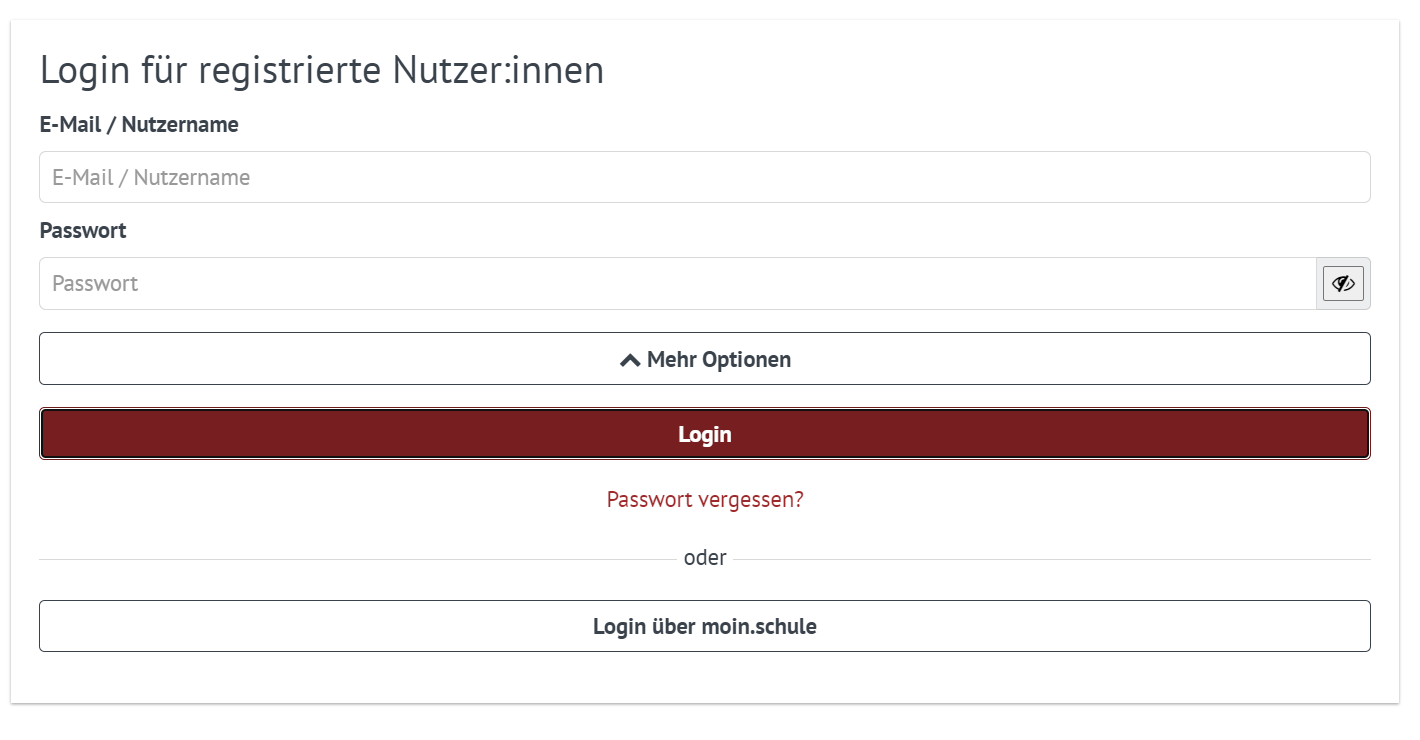
Now you can use this link (or on branch if you are using that) to log into SVS via moin.schule. A list of accounts can be found in the "hu-dev" Vault inside for testing.
Developing on a new dev-branch
When developing on a dev-branch, you need to add its base-url to the system's configuration in moin.schule.
To do so, you have to follow these steps:
- Login into: https://stage.niedersachsen-login.schule/ using a sysAdmin account (use 1password and start typing "sysAd" to find the right one fohaka...)
- Click on "Anwendungen" in the sidebar
- Type "dBildungscloud" into the search/filter field
- Click on "dBildungscloud-Dev" for dev-environments
- Select Tab "Konfiguration"
- Click on "+"-Button in the first row of redirect-urls
- Enter the url-pattern for your branch in the new text-field at the end of the list (should end with /*)
- Click on speichern
- Logout as Sysadmin
- Login on your dev-branch
Special features
This section describes special features.
-
Backchannel Logout URL
This URL must be configured within the moin.schule application to enable the logout from SVS during logout from moin.schule.
The pattern is:
https://n21-<SVS-branch>.nbc.dbildungscloud.dev/api/v3/logout/oidc -
EndSession-Endpoint
This endpoint is a part of system configuration for moin.schule and is used to logout from moin.schule during logout from SVS client.
The pattern is:
https://<moin.schule-URL>/realms/SANIS/protocol/openid-connect/logout